Introduction
This article is about how to understand and implement a satellite assembly.
Background
A satellite assembly is a .NET Framework assembly containing resources specific to a given language. Using satellite assemblies, you can place resources for different languages in different assemblies, and the correct assembly is loaded into memory only if the user selects to view the application in that language.
Using the code
Here is the step by step procedure to create an application with a satellite assembly:
1.Create a new Windows project (say: TestApp).
2.Add a ComboBox (name it
cmbLanguage) and two Labels (one label for “Select Language” and the other for Displaying the Result (name it lblMultiLangResult)) as shown below: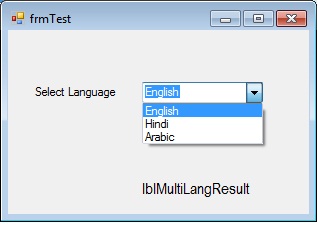
1. Add three Resx files (string.en-US.resx, string.he.resx, and string.ar-sa.resx for English, Hindi, and Arabic, respectively). Note: For other language codes, visit: http://msdn.microsoft.com/en-us/library/ms533052(v=vs.85).aspx
2. In the resx files, enter the values shown below:

5. Next, open the code file (.cs file) and create the object for the resource manager at class level:
Hide Copy Code
System.Resources.ResourceManager rm = new System.Resources.ResourceManager("TestApp.string", Assembly.GetExecutingAssembly());
Here in the first parameter: TestApp is the name of your Windows Application and string is the name of the Resource file part before the language code. Second parameter is the Main Assembly for the resources (for this you have to add the namespace: using System.Reflection;).
6. Write the following function for the culture:
Hide Copy Code
private void ChangeCulture(string sLangCode)
{
    Thread.CurrentThread.CurrentUICulture = new CultureInfo(sLangCode);
    Thread.CurrentThread.CurrentCulture = CultureInfo.CreateSpecificCulture(sLangCode);
    lblMultiLangResult.Text = rm.GetString("lblResult");
}
For the above function to run, please add the following namespaces:
Hide Copy Code
using System.Threading; //For Threading
using System.Globalization; //For CultureInfo
7. On the ComboBox item change event, add the following code:
Hide Copy Code
private void cmbLanguage_SelectedIndexChanged(object sender, EventArgs e)
    {
        string sLangCode;
        if (cmbLanguage.SelectedIndex == 0)
        {
            sLangCode = "en-US";
            ChangeCulture(sLangCode);
        }
        else if (cmbLanguage.SelectedIndex == 1)
        {
            sLangCode = "he";
            ChangeCulture(sLangCode);
        }
        else if (cmbLanguage.SelectedIndex == 2)
        {
            sLangCode = "ar-sa";
            ChangeCulture(sLangCode);
        }
    }
8. On page load, add the following line of code:
Hide Copy Code
ChangeCulture("en-US");
9. Run the application and see the output as below:

Points of Interest
When you look at ApplicationFolder/bin/release (check bin/debug if you are running in debug mode), there are three folders containing the same name of the DLL but each for different culture. The correct one will load when the user selects one of them.

good
ReplyDelete